
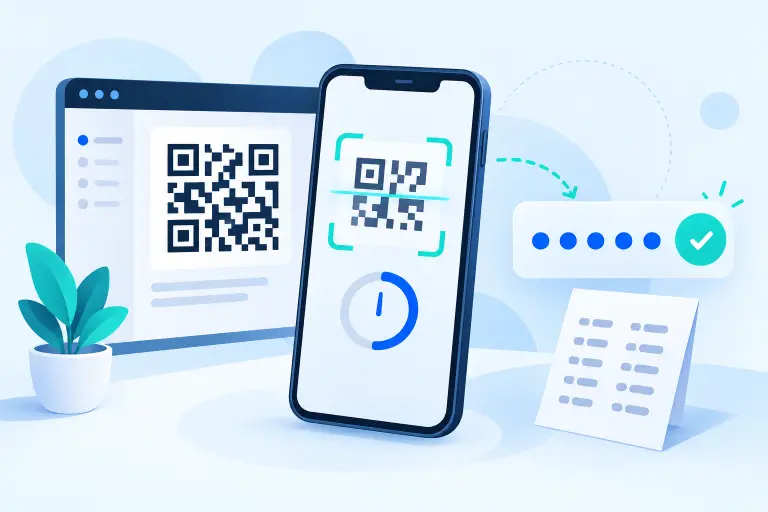
To set up Google Authenticator, install the official mobile app, open the security settings for the account you want to protect, scan its setup QR code, and verify one generated code. Create recovery options before you sign out.
What you need before setup
- An Android phone, iPhone, or iPad that can run the current Google Authenticator app
- A secure screen lock on that device
- Access to the security settings of the account you are protecting
- A second screen for displaying the QR code, or the service’s manual setup key
- A safe place for the protected service’s recovery codes
Google Authenticator is not limited to Google Accounts. It generates standard codes for many websites and apps that support authenticator-app verification. The menu names differ by service; look for options such as Two-factor authentication, 2-Step Verification, MFA, or Authenticator app.
How to set up Google Authenticator
Install the official app
Follow Google’s official Authenticator help page to the verified listing for your device. Avoid similarly named apps and advertisements that imitate the product.
Secure the phone
Use a strong device PIN, password, or pattern and supported biometric protection. In Google Authenticator settings, consider enabling Privacy Screen so the app requires device verification before displaying codes.
Open the account’s security settings
On a trusted browser or official app, sign in to the account you want to protect. Enable two-step verification if required, then choose the authenticator-app option.
Scan the setup QR code
In Google Authenticator, add a code and choose the QR-scanning option. Point the phone at the code displayed by the service. If you have only one screen, use the service’s setup key instead when offered.
Verify a generated code
Enter the current six-digit code back on the service’s setup page before its countdown expires. Completing this check confirms that both sides hold the matching setup secret.
Save recovery options
Generate the service’s one-time recovery codes and store them somewhere protected and separate from the authenticator phone. Add another strong sign-in method when appropriate.
Test before signing out
Open a private browser window and confirm that your password and a fresh authenticator code work. Keep the original session open until the test succeeds.
Google Authenticator on Android and iPhone
The core process is the same on Android and iPhone: add an account, scan the QR code or enter a setup key, and verify the generated code with the service. Google’s current app supports account synchronization on both platforms, provided you sign in to a Google Account in Authenticator.
Buttons, icons, and permission prompts may vary by app version and operating system. Camera permission is needed to scan a QR code, but manual key entry provides an alternative. The app can continue generating standard time-based codes without internet or mobile service after enrollment.
Can you use Google Authenticator on a PC or Mac?
Google’s official Authenticator is a mobile app, not a native Google Authenticator desktop application or browser extension. Search results offering a “Google Authenticator for PC,” Mac plugin, or Chrome extension may be unrelated third-party products. If you need codes across desktop and mobile devices, compare documented alternatives in our authenticator apps guide.
Should you sync Google Authenticator?
When you sign in to a Google Account inside Authenticator, Google can synchronize your codes across devices connected to that account. This can reduce lockout risk when changing phones. Google says Authenticator codes are encrypted in transit and at rest in its systems.
You can also choose Use without an account. In that mode, codes remain on the device and will not automatically appear elsewhere. You must use the manual transfer process while the old device is available or re-enroll each protected account.
| Mode | Benefit | Tradeoff |
|---|---|---|
| Google Account sync | Codes can become available on other signed-in Authenticator devices | Access depends partly on protecting and recovering the Google Account |
| Without an account | Codes stay local to the device unless manually transferred | Losing or erasing the device without a transfer can remove the stored codes |
Whichever mode you choose, keep service-issued recovery codes. Authenticator synchronization is not a replacement for each website’s recovery system. Our Google Authenticator backup guide explains synchronization, backup codes, restoration, and lost-phone recovery.
How to move Google Authenticator to a new phone
If your codes are synchronized, install Google Authenticator on the new device and sign in with the same Google Account. If you use Authenticator without an account, keep the old phone and use the app’s Export accounts and Import accounts flow.
Test important codes before erasing the old phone, and never share or save a transfer QR code. If there is no compatible transfer path, re-enroll the new authenticator inside each protected service before removing the old one.
Why is my Google Authenticator code not working?
Check these common causes:
- The code expired: wait for the next code and enter it before the countdown ends.
- The wrong entry was selected: confirm the service name and username shown with the code.
- The phone’s time is incorrect: enable automatic date, time, and time-zone settings. Current Authenticator versions use the operating system’s time.
- The service still expects an older enrollment: return to the account’s security settings and confirm which authenticator is active.
- A newer requested code invalidated an older one: some service-specific verification flows accept only the latest request.
Never respond to a failed code by sharing the setup key, recovery code, screenshot, or QR code with someone claiming to provide support.
What if your phone is lost or stolen?
If your Authenticator codes were synchronized, secure the Google Account and remove or remotely erase the lost device when possible. If the codes were stored only on that phone, you will need another enrolled factor, a service-issued recovery code, a trusted existing session, or each service’s official account-recovery process.
For a Google Account, Google lists possible backup routes such as another signed-in phone, another registered phone number, a previously saved backup code, a security key, a passkey on another device, or a trusted device. Available options depend on what you configured before the loss.
Google Authenticator cannot bypass another company’s security or recover that company’s account for you. Contact the protected service through its official recovery channel.
Google Authenticator safety checklist
- Install only from Google’s official help link or verified store listing.
- Use a strong phone screen lock and enable Privacy Screen.
- Keep setup and transfer QR codes private.
- Decide deliberately whether to synchronize or remain local-only.
- Store recovery codes separately from the phone.
- Test new devices before removing old ones.
- Prefer a passkey or security key when a service offers phishing-resistant sign-in.
Frequently asked questions
Select a question to open or close its answer.
Is Google Authenticator free?
Google Authenticator is offered as a free mobile app. Download it through Google’s official documentation or verified app-store listing to avoid similarly named products.
Does Google Authenticator work without internet?
Yes. Standard time-based codes can be generated offline after setup. Account synchronization, app downloads, updates, and some account-management actions require connectivity.
Can I use Google Authenticator without a Google Account?
Yes. Google provides a Use without an account mode that stores codes locally. Those codes will not automatically appear on another device, so plan a manual transfer and keep recovery options.
Can Google Authenticator be used for non-Google accounts?
Yes. It can generate standard authenticator codes for many websites and apps that support TOTP-based two-step verification.
Does deleting Google Authenticator turn off 2FA?
No. Removing the app does not necessarily remove the authenticator requirement from each protected account. Confirm another sign-in method or disable the enrollment within the service before deleting access.
What should I do with the setup QR code?
Scan it privately during enrollment and do not share or publish it. Anyone who obtains the underlying secret may be able to generate matching verification codes.
Sources and further reading
- Google Account Help: Authenticator setup, synchronization, transfer, and troubleshooting
- Google Account Help: Fix common 2-Step Verification issues
- Google Account Help: Create and use backup codes
- Google Account Help: Avoid getting locked out
Google may change labels, availability, and security flows. Follow the current prompts in your Google Account and the latest official documentation.