
Authenticator apps generate or approve sign-in checks that help protect accounts beyond a password. The right app is one you can secure, back up, transfer, and recover—not simply the one with the most familiar name.
What do authenticator apps do?
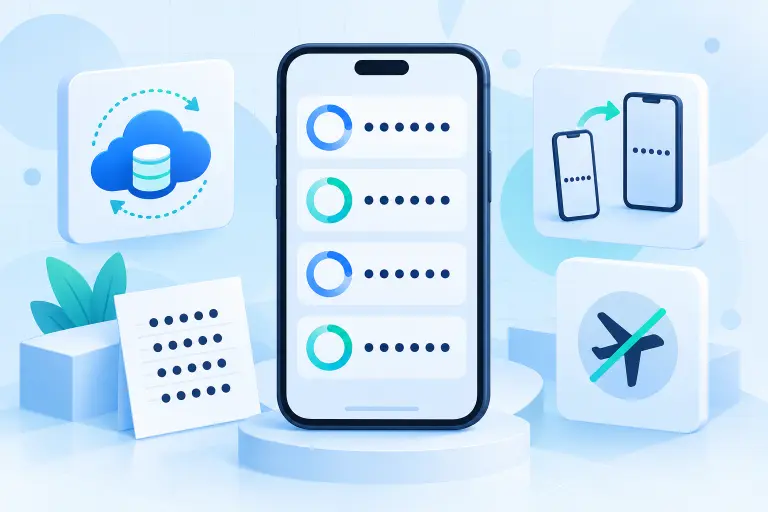
Most third-party authenticator apps store a secret that was shared when you scanned a setup QR code. The app combines that secret with the current time to calculate a short-lived Time-based One-Time Password, or TOTP. A new code commonly appears every 30 seconds, and the app can usually generate it without internet or cellular service.
Some apps also approve push notifications for their own provider’s accounts. That is a different mechanism from typing a TOTP code. For example, Microsoft Authenticator can handle standard codes while also supporting Microsoft-specific approval flows.
Are authenticator apps secure?
An authenticator app usually avoids the phone-number transfer and delivery risks associated with SMS. However, a code you manually type can still be captured and relayed by a convincing phishing page. When an account supports a passkey or hardware security key, that option offers stronger phishing resistance.
The app’s security also depends on the phone’s screen lock, whether the app has its own access protection, how backups are encrypted, and whether you have a safe recovery plan. If you prefer an integrated vault, our password manager comparison covers products that can store passwords, passkeys, and sometimes TOTP codes.
Authenticator apps compared
There is no universal “best” authenticator app. The useful question is which tradeoff fits your devices and recovery needs. The comparison below reflects official documentation reviewed in September 2026; features and platform requirements can change.
| App | Platforms | Backup or transfer approach | Best fit |
|---|---|---|---|
| Google Authenticator | Android, iPhone/iPad | Optional Google Account synchronization or manual QR transfer | Simple use across Google-connected mobile devices |
| Microsoft Authenticator | Android, iPhone/iPad | Platform-specific cloud backup; iOS and Android backups do not restore across device types | People who also use Microsoft account or work sign-in flows |
| 2FAS Auth | Android, iPhone/iPad | Google Drive on Android, iCloud on iOS, plus manual backup files | Mobile users who want clear backup and export controls |
| Ente Auth | Android, iPhone/iPad, desktop, web | End-to-end encrypted cross-platform synchronization and encrypted export | People who want the same TOTP vault across several platforms |
| Aegis | Android | Encrypted local vault with manual export and automatic backup to a chosen storage location | Android users who prioritize open-source, local control |
Google Authenticator
Google Authenticator works offline and can synchronize codes through a Google Account. It can also be used without an account, in which case the codes remain on the device unless you manually transfer them. Google documents QR-based export and import between devices and offers a Privacy Screen setting. If you are replacing a device, follow our guide to transfer Google Authenticator to a new phone.
Microsoft Authenticator
Microsoft Authenticator supports standard rotating codes plus Microsoft-specific passwordless and approval experiences. Its backup behavior deserves attention: Microsoft states that backup and restore work only within the same device type, so an iOS backup cannot be restored to Android or vice versa. Work and school accounts may require re-registration after restoration.
2FAS Auth
2FAS stores token data locally and can synchronize encrypted data using Google Drive on Android or iCloud on iOS. It also supports manual backup files. Its own documentation warns that an exported file without a password is readable and contains sensitive secret-key data, so password-protect exports and store them carefully.
Ente Auth
Ente Auth is open source and offers end-to-end encrypted synchronization across mobile, desktop, and web clients. It supports importing and exporting tokens, including an encrypted export format. This broad availability can be useful when you genuinely need codes on different operating systems, but every authorized device still needs strong protection.
Aegis
Aegis is an open-source Android authenticator with an encrypted vault, biometric or password unlock, encrypted exports, and automatic backup to a location selected through Android’s storage system. It does not provide an iPhone, Windows, macOS, or browser version, making it best suited to Android-centered workflows.
How to choose an authenticator app
Compare these factors before enrolling dozens of accounts:
- Supported devices: Confirm the app works everywhere you actually need it.
- Recovery model: Decide whether you prefer encrypted synchronization, an encrypted manual backup, or local-only storage.
- Export options: Check whether you can leave the app without re-enrolling every account.
- Access protection: Use a phone screen lock and enable the app’s PIN, password, or biometric lock when available.
- Account requirement: Understand whether synchronization requires a Google, Microsoft, Apple, or separate provider account.
- Transparency and maintenance: Prefer an actively maintained app with clear documentation and a trustworthy distribution channel.
Do authenticator apps track you?
A basic TOTP calculation can happen entirely offline, but an app may still connect for synchronization, backup, crash reporting, updates, or provider-specific push features. Privacy behavior differs by app and version. Review the current privacy policy, store disclosures, permissions, and network-dependent features rather than assuming every authenticator behaves identically.
Backup, recovery, and avoiding lockouts
The most secure authenticator is not useful if the legitimate owner loses every route back into an account. Before relying on an app, learn exactly how its backup works and what credential is needed to restore it.
- Save each service’s one-time recovery codes separately from the authenticator phone.
- Protect authenticator exports with a strong, unique password when the app offers encryption.
- Do not keep the only backup file on the phone it is meant to replace.
- For important accounts, enroll a second strong method where appropriate.
- Test restoration or transfer before resetting or selling an old device.
Cloud sync is not the same as an account’s recovery codes. Sync may restore the authenticator’s token secrets; recovery codes are issued by each protected service and can help when the authenticator itself is unavailable. Google Authenticator users can follow our dedicated backup and recovery guide.
How to change authenticator apps or move to a new phone
Keep the old phone active
Do not erase it or remove the old app until every important account works on the new setup.
Review export and sync options
Use the official transfer feature when available. Remember that some apps and platforms cannot restore across operating systems.
Move accounts carefully
If direct transfer is unavailable, visit each service’s security settings, add the new authenticator, and verify a fresh code.
Test in a separate session
Use a private browser window to confirm the new code works while the existing signed-in session remains available.
Refresh recovery material
Download or print new recovery codes if the service replaces them during the change.
Remove obsolete access
Only after successful testing should you remove the old authenticator enrollment and securely erase sensitive exports.
Can you use two authenticator apps?
Sometimes. A service may let you enroll multiple authenticators, or two apps may scan the same setup QR code during initial enrollment. That duplicates the underlying secret, so each copy must be protected. Do not display or rescan an old setup secret unless you understand the exposure it creates.
Authenticator app setup checklist
- Download the app from its official website or verified app-store listing.
- Secure the phone with a strong screen lock.
- Enable the app’s access lock when available.
- Start setup from the official account-security page.
- Scan the QR code privately and never share it.
- Enter one generated code to confirm enrollment.
- Create and store the service’s recovery codes separately.
- Configure and test the app’s backup or transfer method.
For the broader security context, see what two-factor authentication is and how it works.
Frequently asked questions
Select a question to open or close its answer.
Do authenticator apps work offline?
Standard TOTP codes can normally be generated without internet or cellular service because the app uses a stored secret and the device’s current time. Synchronization, backup, push approval, and updates may require a connection.
Are authenticator apps free?
Many well-known authenticator apps are free, while some password managers or broader security products include authentication features in paid plans. Check current pricing and feature limits before choosing.
Are authenticator apps safer than SMS?
They avoid several risks tied to phone numbers and text delivery. Manually entered authenticator codes can still be stolen by real-time phishing, so use a passkey or security key when stronger phishing resistance is available.
Can I change authenticator apps?
Yes, but transfer options differ. Use an official export feature or re-enroll the new app through each service’s security settings. Keep the old app available until every new code has been tested.
Can I use multiple authenticator apps for one account?
Some services support multiple enrolled authenticators. Two apps can also hold copies of the same TOTP secret if both scan it during setup, but each copy increases what you must protect.
What happens if I lose my authenticator phone?
Use a tested backup, another enrolled factor, a saved recovery code, or the service’s official recovery process. An authenticator company generally cannot bypass the protected website’s account recovery.
Sources and further reading
- Google Account Help: Google Authenticator codes, sync, and transfer
- Microsoft Support: About Microsoft Authenticator
- Microsoft Support: Authenticator backup and restore
- 2FAS Support: Authenticator backup, export, and security settings
- Ente Auth: Platforms, encrypted sync, and exports
- Aegis: Official source repository and feature documentation
Product features and interfaces can change. Verify current requirements in the app’s official documentation before migrating authentication credentials.