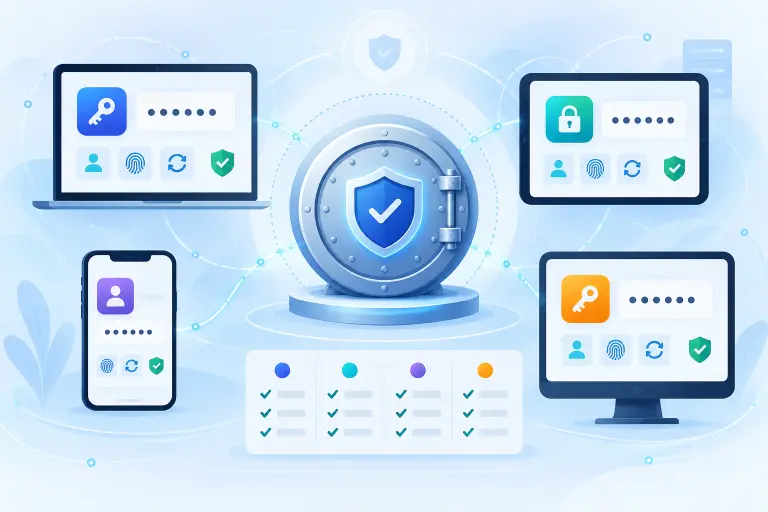
The best password managers make it practical to use a different strong password for every account, synchronize credentials across your devices, support passkeys, and recover access without weakening the vault. The right choice depends on your devices, budget, sharing needs, and recovery preferences.
Check today’s offers from our affiliate partners:
View Keeper plans View NordPass plans View RoboForm plans
Affiliate links. We may earn a commission at no additional cost to you. Compare the full price, renewal terms, and included features.
Best password managers at a glance
There is no universal winner. These recommendations describe the clearest fit based on currently documented features—not a laboratory ranking or hands-on benchmark.
| Password manager | Best fit | Notable strengths | Watch for | Plans |
|---|---|---|---|---|
| Keeper | Structured personal and family security | Unlimited-device paid plan, sharing, emergency access, broad support, passkey storage | Some monitoring and storage features may be separate add-ons or bundles | View plans |
| NordPass | Straightforward cross-device use | Password health, breach monitoring, secure sharing, passkey support | Confirm which advanced features require Premium | View plans |
| RoboForm | Password management with strong form filling | Passwords, passkeys, form filling, sharing, emergency access, broad platform support | Compare current Free, Premium, and Family limits before moving | View plans |
| Bitwarden | Strong free value and user control | Unlimited passwords and devices on Free, open-source clients, encrypted export, self-hosting option | Some security reports, integrated TOTP, and emergency access require Premium | View plans Non-affiliate |
| 1Password | Families and polished multi-device use | Secret Key, Watchtower alerts, Travel Mode, sharing, broad platform support | No permanent free personal tier; recovery planning depends on the account type | View plans Non-affiliate |
| Proton Pass | Privacy-focused users and email aliases | Unlimited logins/devices on Free, passkeys, aliases, open-source apps, broader Proton ecosystem | Integrated TOTP, expanded sharing, monitoring, and emergency access are paid features | View plans Non-affiliate |
Choosing by device? Compare Android password managers and Chrome password managers. RoboForm users can examine security, pricing, passkeys, and the safer process to export RoboForm passwords.
How we compared the best password managers
Our comparison uses provider documentation and prioritizes the qualities that affect real account security:
- Vault protection: end-to-end or zero-knowledge design, documented cryptography, audits, and secure local unlock
- Platform support: the phones, computers, browsers, and operating systems you actually use
- Autofill and passkeys: reliable credential capture, generation, autofill, and modern passkey support
- Recovery: clear account recovery, emergency access, exports, and family administration without an unsafe backdoor
- Sharing: controlled vault, folder, or item sharing instead of copying passwords through messages
- Security alerts: useful warnings for weak, reused, or exposed credentials
- Portability: practical imports and exports so leaving the service is possible
- Value: what the free or paid plan includes, without treating the lowest price as the only factor
Features and promotions change. We intentionally avoid embedding a price that could become stale; check the current plan and renewal terms before purchasing.
Keeper: strong controls, sharing, and support
Keeper’s paid personal plan documents unlimited password and passkey storage, device synchronization, browser and app access, secure sharing, emergency access, two-factor authentication, and customer support. Its Family plan adds five private vaults, shared folders, permissions, and included file storage.
Keeper’s BreachWatch monitoring checks credentials in the vault against known breach data and alerts the user when a stored password may be compromised. Keeper presents BreachWatch and secure file storage as add-ons or parts of selected bundles, so compare the exact package rather than assuming every advertised feature is included in the base plan.
Keeper is a good fit if:
- You want a paid manager with broad device coverage and support options.
- Emergency access and structured family sharing matter.
- You prefer a security-focused product with optional breach monitoring.
Affiliate link. We may earn a commission at no additional cost to you. Confirm the offer, included features, billing period, and renewal price on Keeper’s checkout page.
NordPass: straightforward security monitoring
NordPass documents password and passkey storage, autofill, synchronization, and encrypted vault protection. Premium adds features such as Password Health, Data Breach Scanner, and secure item sharing. Its breach scanner monitors for exposed credentials and provides alerts and remediation information.
NordPass is a good fit if:
- You want a clean, approachable password manager across common devices.
- Password-health reports and breach alerts are priorities.
- You already use other Nord security products but still want to evaluate the password manager on its own merits.
Affiliate link. We may earn a commission at no additional cost to you. Confirm current features, introductory pricing, renewal terms, and refund conditions with NordPass.
Read our full NordPass review for a closer look at security, plans, passkeys, downloads, and browser support.
RoboForm: password management with form filling
RoboForm combines password and passkey management with its long-standing form-filling tools. Its documented personal features include cross-platform access, password generation, secure sharing, emergency access, and two-factor authentication. Exact Free, Premium, and Family limits can change, so compare the live plan table before migrating.
RoboForm is a good fit if:
- You frequently fill detailed online forms as well as login fields.
- You need a password manager across mainstream computers, phones, and browsers.
- Secure sharing and emergency access are part of your recovery plan.
Affiliate link. We may earn a commission at no additional cost to you. Confirm current features, pricing, billing period, renewal terms, and refund conditions with RoboForm.
Read our full RoboForm review for a closer look at security, pricing, form filling, passkeys, and its built-in authenticator.
Comparing it directly? See password managers for Chrome, RoboForm vs Bitwarden, RoboForm vs Norton Password Manager, RoboForm vs Dashlane, RoboForm vs LastPass, and RoboForm vs 1Password.
Bitwarden: excellent free value and flexibility
Bitwarden’s Free personal plan includes unlimited password storage, unlimited devices, synchronization, password generation, and encrypted export. Bitwarden also supports passkeys and offers a self-hosting option. Premium adds features including the integrated TOTP authenticator, security reports, file attachments, expanded 2FA options, and emergency access.
Bitwarden suits people who value a capable free tier, open-source software, portability, and control. Self-hosting is not automatically safer—it transfers maintenance, updates, backups, availability, and server security to you.
Review Bitwarden’s current personal plans
1Password: polished family and cross-platform experience
1Password supports major desktop and mobile operating systems and browsers. Its personal plans document password and passkey management, secure sharing, Watchtower alerts, encrypted document storage, Travel Mode, and a Secret Key used alongside the account password. The Families plan supports up to five family members with private and shared vaults.
It is a strong fit for households that value polished sharing and account administration. Because there is no permanent free personal plan, compare the ongoing subscription cost and establish the recovery process before moving your only copy of important credentials.
Review 1Password’s current personal plans
Proton Pass: privacy ecosystem and email aliases
Proton Pass Free documents unlimited logins, unlimited devices, password generation, passkey support, apps for major platforms, and a limited number of hide-my-email aliases. Paid plans expand aliases and add features including integrated TOTP, secure sharing, dark-web monitoring, file attachments, and emergency access.
Proton Pass is particularly interesting if email aliases and integration with Proton’s broader privacy services matter. Evaluate whether you want your password manager tied to the same broader account used for email, storage, or VPN services, and protect that account accordingly.
Comparing it with a form-filling specialist? Read Proton Pass vs RoboForm.
How to choose a password manager
The best password manager is the one you can use consistently without creating a dangerous recovery gap. Before moving your vault, answer these questions:
- Does it work on every phone, computer, and browser you rely on?
- Can it store and use passkeys on those devices?
- Does the free or paid plan include the sharing and recovery features you need?
- Can you export your vault in a documented format?
- How do you regain access if you forget the account password or lose every signed-in device?
- Can family members recover safely without gaining automatic access to private vaults?
- Are security alerts included, useful, and understandable?
- Does storing TOTP codes in the same vault fit your threat model, or would you rather keep the second factor separate?
Password manager setup checklist
Start with the official site
Install apps and extensions only through links from the provider’s known domain or verified store listing.
Create a strong account password
Use a unique, memorable passphrase that is not stored in the vault as its only accessible copy.
Enable strong authentication
Prefer a passkey or hardware security key when supported, then record the recovery process.
Import carefully
Use the provider’s documented import tool. Delete unencrypted CSV exports after verifying the migration and empty any relevant recycle bin or cloud copy.
Replace weak and reused passwords
Begin with primary email, financial accounts, cloud storage, mobile-carrier access, and other accounts that can reset passwords elsewhere.
Test recovery
Confirm emergency access, recovery codes, exports, or family recovery before an emergency occurs.
Then turn on two-factor authentication for important accounts and use our authenticator-app comparison if you want codes kept separately from the password vault.
Frequently asked questions
Select a question to open or close its answer.
What is the best password manager?
There is no single best choice for everyone. Keeper fits people wanting structured paid features and support; NordPass emphasizes approachable security monitoring; RoboForm combines credential management with strong form filling; Bitwarden offers strong free value and control; 1Password is polished for families; and Proton Pass combines aliases with a privacy ecosystem.
Are free password managers safe?
A reputable free plan can be a sensible choice when it provides strong encryption, updates, multi-device support, and a recovery model you understand. Free does not automatically mean unsafe, and paid does not automatically mean secure.
Should I store 2FA codes in my password manager?
It improves convenience but places the password and code behind the same vault. Some people accept that tradeoff; others keep TOTP in a separate authenticator for stronger separation. Protect the vault itself with phishing-resistant authentication where possible.
Can password managers store passkeys?
Many current password managers can create, store, synchronize, and use passkeys, but platform and browser support varies. Confirm compatibility with your devices before moving important credentials.
What happens if I forget my password-manager password?
Recovery differs by provider and account type. Some offer emergency or family recovery; zero-knowledge designs may prevent the provider from simply revealing or resetting access to encrypted data. Configure and test recovery in advance.
Which links are affiliate links?
The Keeper, NordPass, and RoboForm buttons are affiliate links. Instant2FA may earn a commission from qualifying purchases through them, at no additional cost to you. Other products are included for editorial comparison without an affiliate relationship currently identified on this page.
Sources and further reading
- Keeper: current personal and family features
- Keeper: BreachWatch documentation
- NordPass: documented features
- NordPass: Data Breach Scanner
- RoboForm: current personal plan features
- Bitwarden: personal plan features
- 1Password: personal and family features
- Proton Pass: plan comparison
Product capabilities, prices, promotions, and plan limits change. Verify the current provider documentation and checkout terms before subscribing.