
Need to back up RoboForm data or move your passwords? This guide explains the documented export and backup paths, what each one includes, and how to protect the plaintext file during migration.
To export RoboForm passwords, open RoboForm Settings, choose Account & Data, select Export, confirm with your Master Password, and export a CSV. That file is readable plaintext, so keep it private, verify the import promptly, and delete every copy when finished.
Staying with RoboForm? You may not need a plaintext export. Compare current cross-device, backup, sharing, and recovery features first.
Affiliate link. We may earn a commission at no additional cost to you.
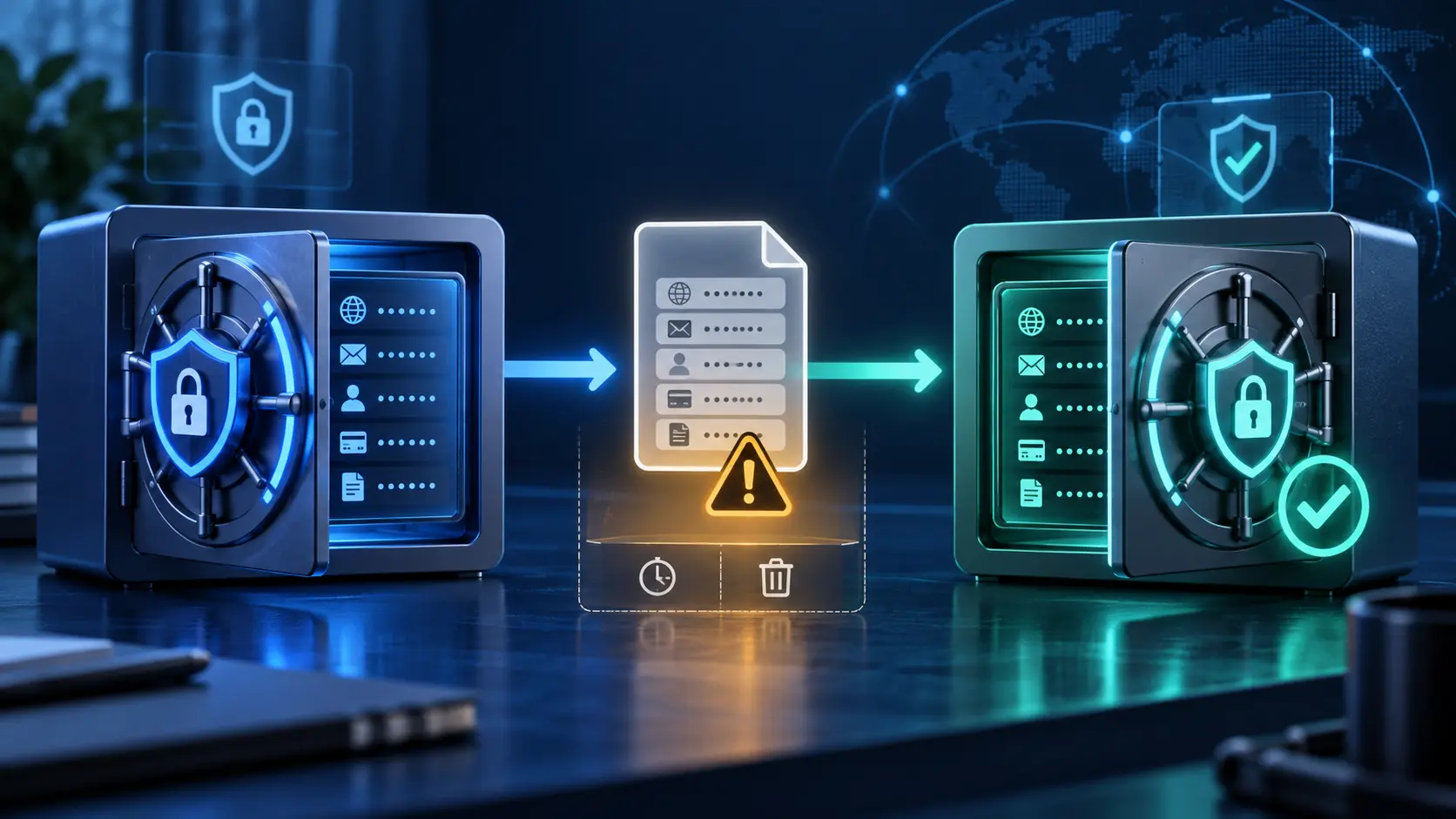
Before you export RoboForm passwords
- Update RoboForm and begin from its official application or extension.
- Keep the old vault and a trusted session available until the destination is verified.
- Choose the destination manager and read its official RoboForm import instructions first.
- Use a trusted, updated computer—not a shared, public, work-controlled, or borrowed device.
- Close messaging, sync, backup, and file-indexing tools that could copy the export.
- Decide on a local destination folder you can find and clean afterward.
Export RoboForm passwords from the browser extension
- Open the RoboForm browser extension.
- Select the three-dot menu, then Settings.
- Choose Account & Data.
- Under Export data from RoboForm, select Export.
- Enter your RoboForm Master Password to authorize the action.
- Confirm the CSV export. RoboForm documents that the extension saves it to the designated Downloads folder.
- Import the file into the destination manager immediately.
Labels may change between versions. If the expected option is missing, update RoboForm and use its current official export article rather than downloading an unofficial conversion tool.
Export on Windows or Mac
Windows
- From the extension, open Settings, choose Advanced, and open the installed RoboForm options.
- Select Account & Data, then Export.
- Confirm with the Master Password.
- Select the folders and supported data types you need, choose CSV file, choose a local save location, and export.
Mac
- Open RoboForm from the menu bar and choose Settings.
- Select Account & Data, then Export to….
- Confirm with the Master Password.
- Select folders and supported data types, choose CSV file, select a local destination, and export.
RoboForm’s documented account-to-account migration also offers Backup and Restore for eligible Premium accounts. That can preserve more RoboForm data than the CSV route when both the source and destination are RoboForm accounts.
Verify before deleting the old vault
- Confirm the destination reports a successful import and a plausible item count.
- Check examples from several folders, including long passwords, notes, and unusual usernames.
- Test a few low-risk logins by navigating to the official domains yourself.
- Review duplicates and verify that new credentials now save to the intended manager.
- Recreate unsupported items such as passkeys through each account’s official security settings.
- Confirm recovery on a second supported device before uninstalling RoboForm or ending the subscription.
Delete the plaintext export safely
- Close the destination manager and any spreadsheet or text editor that opened the CSV.
- Delete the CSV from Downloads or the chosen folder.
- Empty the device recycle bin or trash.
- Check whether cloud sync, automated backup, email, antivirus quarantine, or “recent files” created another accessible copy.
- If you moved the file with a USB drive, remove the copy from that drive too.
- Keep your old vault temporarily, but not the plaintext file, until migration and recovery are verified.
For related decisions, see our RoboForm review, RoboForm pricing guide, RoboForm passkeys guide, and password-manager comparison.
Export RoboForm passwords FAQ
Select a question to open or close its answer.
How do I export RoboForm passwords?
Open RoboForm Settings, choose Account & Data, select Export, confirm with your Master Password, and export a CSV. Import it on a trusted device and delete every plaintext copy after verification.
Where does RoboForm save the export?
The browser-extension flow currently saves the CSV to the designated Downloads folder. Windows and Mac desktop flows allow you to choose a location.
Does a RoboForm CSV include everything?
No. RoboForm documents CSV migration for Logins, Bookmarks, and Safenotes. Do not assume identities, passkeys, TOTP secrets, attachments, permissions, or every custom field will transfer.
Are RoboForm CSV exports encrypted?
No. Treat the CSV as readable plaintext containing highly sensitive credentials. Do not email it, upload it, or retain it after a verified migration.
Can I export RoboForm passkeys?
RoboForm says saved passkeys are not editable or copyable. Create replacement passkeys through each website’s official security settings before removing the old credential.
Is the RoboForm link an affiliate link?
Yes. Instant2FA may earn a commission through the marked RoboForm link at no additional cost to you.
Sources and further reading
- RoboForm account migration and CSV export steps
- RoboForm exporting help
- RoboForm CSV import instructions and warning
- RoboForm passkey documentation
Checked September 12, 2026. Interfaces and supported export fields can change; follow current official documentation during the migration.