
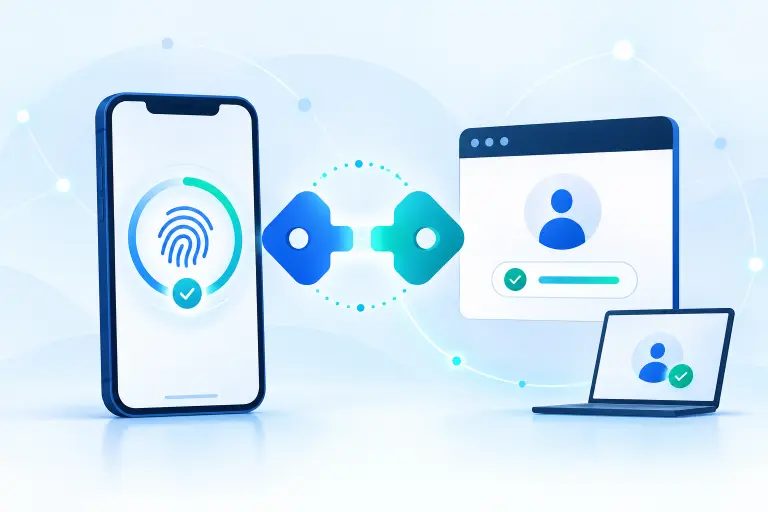
A passkey is a digital credential that lets you sign in without typing a password. It uses public-key cryptography and is unlocked on your device with the same face, fingerprint, PIN, or pattern you already use.
What is a passkey?
A passkey is a password-replacement credential based on the FIDO2 standards, including WebAuthn. Instead of remembering and sending a shared secret, you ask a phone, computer, password manager, or hardware security key to prove that it holds the correct private key.
Each passkey is created for a particular account on a particular website or application. It is not a master key that every service can read. Your device usually asks for its screen-unlock method before allowing the passkey to be used. If you want a cross-platform credential provider, compare our guide to the best password managers with passkey support.
How do passkeys work?
When you create a passkey, your device or credential manager generates a matched pair of cryptographic keys:
- Public key: stored by the website or app. It does not need to be secret.
- Private key: protected by your device, security key, or passkey provider and not disclosed to the website.
During sign-in, the legitimate service sends a challenge. Your device asks you to approve the request, signs the challenge with the private key, and returns the result. The service checks it with the public key.
The browser and operating system bind that response to the real website. A look-alike phishing page on another domain cannot request a valid response for the legitimate site. This is the central security advantage over passwords and manually entered one-time codes.
Passkeys versus passwords and 2FA
| Sign-in method | What you provide | Phishing resistance | Common recovery concern |
|---|---|---|---|
| Password | A reusable secret you type | Low | Reset email or support process |
| Password plus authenticator app code | Password and a temporary code | Improved account protection, but codes can be relayed | Lost authenticator or recovery codes |
| Passkey | A device-held cryptographic response | Strong | Provider, device, or account recovery |
Does a passkey replace 2FA?
A passkey can replace a password and the separate code-entry step. The device may require possession of the credential plus a PIN or biometric check before it will sign in. How a service classifies that flow depends on its implementation and assurance requirements.
A passkey is not a six-digit 2FA code, and it should not be described simply as an authenticator code. For a broader comparison, read our guide to two-factor authentication.
Where are passkeys stored?
FIDO distinguishes between two practical categories:
- Synced passkeys can be securely made available across devices through a passkey provider such as an operating-system credential manager or a compatible password manager.
- Device-bound passkeys stay on one authenticator, such as a particular computer or physical security key.
Synced passkeys make replacing or adding a device easier. Device-bound passkeys can provide tighter control for higher-assurance uses, but losing the only device-bound credential can remove that sign-in route. Neither category eliminates the need to review account recovery.
Are passkeys and security keys the same?
No. A passkey is the credential. A physical security key is one type of authenticator that can hold device-bound passkeys. Phones, computers, and credential managers can hold passkeys too.
Passkeys on Apple, Google Chrome, and Microsoft
Passkeys on iPhone and other Apple devices
On supported Apple devices, passkeys can be stored in the Passwords app and synchronized through iCloud Keychain. Face ID, Touch ID, or the device passcode can authorize their use. Apple also supports using an iPhone to approve a passkey sign-in on a nearby device.
Google passkeys and Chrome
Google Password Manager can save and synchronize passkeys across supported Android devices and Chrome environments signed in to the same Google Account. Chrome may ask for a device credential or Google Password Manager PIN before using a saved passkey. A passkey stored only in a local platform store may not have the same backup behavior.
Microsoft passkeys and Windows
Microsoft supports passkeys for Microsoft accounts and participating websites and apps. Depending on the setup, a passkey may be saved to a synced credential manager, a phone or tablet, a physical security key, or a Windows device through Windows Hello. Work or school accounts may be limited by an organization’s policy.
What happens when you get a new device?
If your passkey is synchronized by a credential provider, it may become available after you securely sign in to that provider on the new device. A device-bound passkey does not automatically move. You may need an existing device, another enrolled passkey, a security key, recovery codes, or the service’s official recovery process.
Before replacing, resetting, or selling a device:
- Confirm whether the passkey is synced or device-bound.
- Create and test a passkey on the new device when the service permits it.
- Keep another approved recovery method available.
- Remove obsolete devices and credentials only after the new sign-in works.
Deleting a passkey from your credential manager and deleting it from the website are not always the same action. Review both locations when retiring a credential.
How to create and use a passkey safely
Start from the official service
Open the known website or app directly and sign in using its current method. Do not follow an unexpected passkey enrollment link.
Open account security settings
Look for Passkeys, Sign-in methods, Passwordless, or a similar option. Not every service supports passkeys.
Check the save location
Confirm whether the credential will be stored on this device, in a synced provider, or on a hardware security key.
Approve with the device unlock
Use the face, fingerprint, PIN, password, or pattern requested by the trusted device interface.
Test the new sign-in
Use a private browser window or another supported device without signing out of every existing session.
Review recovery options
Keep another usable route to the account and remove outdated credentials only after testing.
Common passkey misconceptions
- “The website receives my fingerprint.” The biometric check normally stays on the device and authorizes use of the credential.
- “Every passkey is stored only on one phone.” Some passkeys sync through a provider; others are device-bound.
- “A passkey is another password.” It is a cryptographic credential that you do not memorize or type.
- “A passkey makes recovery irrelevant.” Account recovery and fallback methods still affect the security and availability of the account.
- “Any QR code offering a passkey is safe.” Start enrollment from a trusted service and read the device prompt before approving it.
Frequently asked questions
Select a question to open or close its answer.
What is a passkey in simple terms?
A passkey is a digital sign-in credential stored by your device or passkey provider. You unlock it with your device, and it proves your identity to the correct website without sending a password.
Are passkeys safer than passwords?
Passkeys resist ordinary phishing and cannot be guessed or reused like passwords. Overall account security still depends on device protection, credential-provider security, enrollment, and recovery methods.
Can someone use my passkey if they steal my phone?
A passkey normally requires the device’s face, fingerprint, PIN, pattern, or password before use. Protect the device with a strong screen lock and use the platform’s lost-device controls when available.
Do passkeys work across iPhone, Android, Windows, and Chrome?
Passkeys use cross-platform standards, but availability and syncing depend on the website, operating system, browser, and passkey provider. A nearby phone can also approve some cross-device sign-ins.
What happens if I lose every device with my passkeys?
A synced provider may offer a protected recovery process. Otherwise you need another enrolled credential or the website’s official account-recovery flow. Set up recovery before a device is lost.
Can I keep my password after creating a passkey?
Often yes. Many services currently allow both methods, but each service decides whether a password remains available. Review fallback methods because a weak fallback can reduce the benefit of a passkey.
Sources and further reading
- FIDO Alliance: Passkeys and passkey terminology
- Google for Developers: How passkeys work
- Google Chrome Help: Manage passkeys in Chrome
- Apple Support: About the security of passkeys
- Apple Support: Manage passwords and passkeys
- Microsoft Support: What are passkeys and why they matter
This guide provides general educational information. Account interfaces and recovery rules vary, so follow the current instructions from the service and your passkey provider.