
The best password managers for Android should fill logins in both apps and browsers, protect the vault behind your device lock, support passkeys, sync reliably, and give you a safe way to recover or move your data.
Want a dedicated Android password manager? Compare current Android support and plans from our affiliate partners.
View Keeper plans View NordPass plans View RoboForm plans
Affiliate links. We may earn a commission at no additional cost to you. Verify current features, full price, and renewal terms before purchasing.
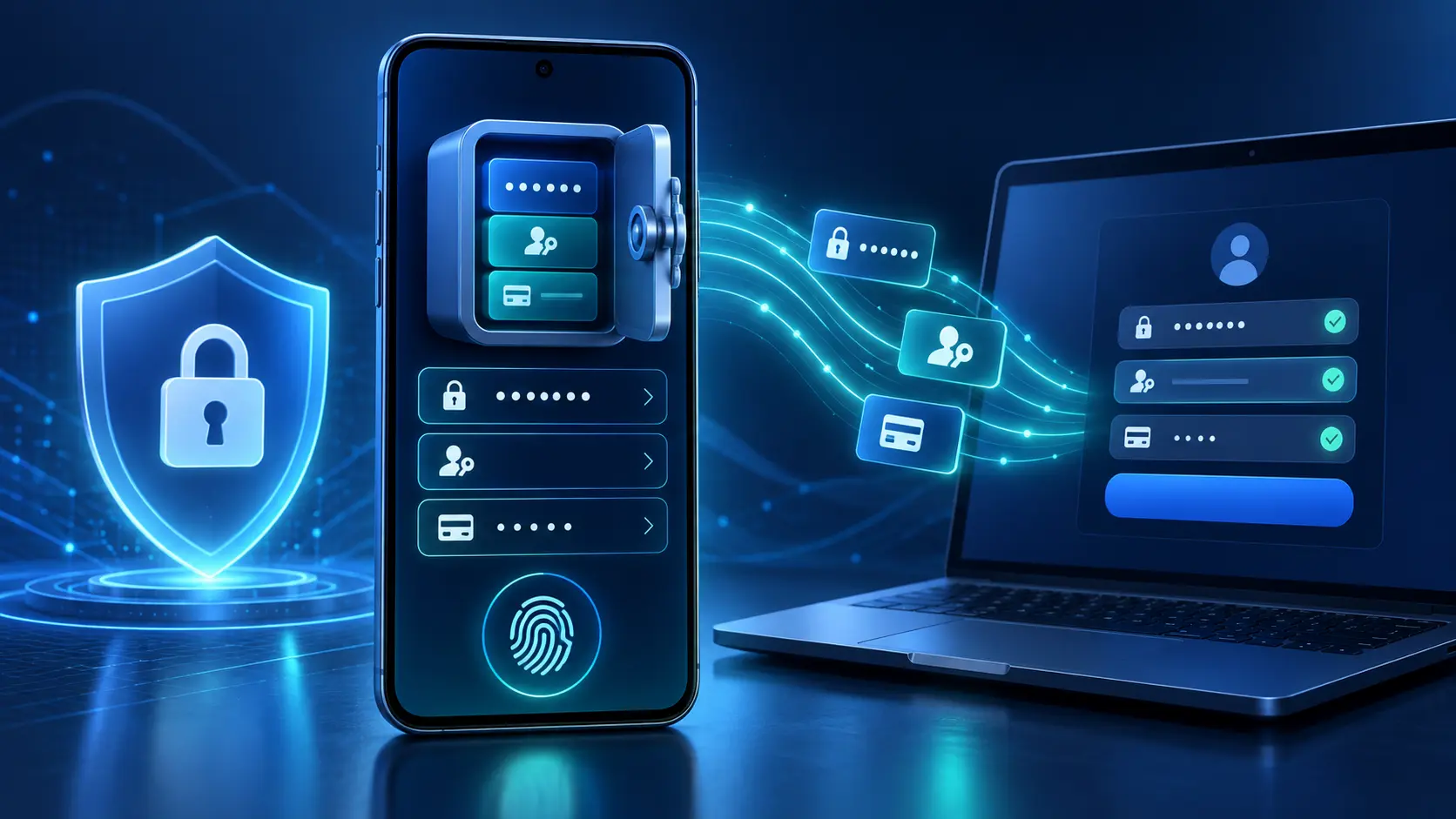
Password managers for Android compared
| Option | Best fit | Android strengths | Watch for | Next step |
|---|---|---|---|---|
| Google Password Manager | Google and Chrome users | Built in, free, app and Chrome autofill, passkeys, password checkup, Google Account sync | Less independent from the Google ecosystem; fewer dedicated sharing and organization tools | Official guide |
| Keeper | Structured personal and family security | Android app, autofill, passkeys, records, sharing and emergency access | Check which monitoring and storage features are included in the selected plan | View plans |
| NordPass | Straightforward cross-device use | Android autofill, passkeys, secure notes and cross-device sync | Confirm which health, sharing and recovery tools require Premium | View plans |
| RoboForm | Detailed form filling | Android app, passwords, passkeys, form filling, sharing and integrated TOTP | Compare current Free, Premium and Family device limits | View plans |
| Bitwarden | Open-source users and free value | Unlimited passwords and devices on Free, Android autofill, passkeys and encrypted exports | Some reports, TOTP and emergency access require Premium | Official download |
| 1Password | Families and polished multi-device use | Android autofill, passkeys, Watchtower, sharing and broad platform support | No permanent free personal tier | Official download |
Keeper, NordPass, and RoboForm rows contain affiliate links. Features and plans change; confirm current provider documentation.
How to choose an Android password manager
Start with your actual device mix. Google Password Manager is convenient when Android and Chrome are your center of gravity. A dedicated manager can make more sense when you also use Safari, Firefox, Windows, macOS, iPhone, or several family accounts.
- App and browser autofill: verify that the manager fills both Android apps and the browser you actually use.
- Passkeys: confirm Android support and the minimum operating-system version before moving passkeys.
- Recovery: understand what happens if you forget the account password or lose every trusted device.
- Export: prefer a documented export route, while recognizing that CSV exports are usually readable plaintext.
- Sharing: use controlled shared records or vaults instead of sending passwords in messages.
- Locking: enable a reasonable vault timeout and protect the phone with a strong screen lock.
Set up Android autofill safely
- Install the app through the provider’s official website or verified Play Store listing.
- Create a unique account password and secure the password-manager account with its strongest supported authentication.
- Open Android Settings and search for Passwords, then select the manager under Passwords, passkeys & accounts. Menu names vary by phone and Android version.
- Enable the chosen manager to suggest credentials and passkeys.
- Test one low-risk website and one app. Confirm that the suggested credential matches the exact domain or app.
- Only after testing, disable competing save and fill prompts so new credentials do not land in the wrong vault.
Passkeys, biometrics, and Android screen lock
Android uses the device screen lock—such as a fingerprint, face unlock, PIN, or pattern—to approve passkey creation and sign-in. The biometric template is not the passkey and is not sent to the website. The password manager stores or synchronizes the passkey credential.
Current Android guidance allows a compatible third-party password manager to offer passkeys. Availability still depends on the Android version, the manager, the app or browser, and whether the website supports passkeys. Keep an account recovery method until you have tested the passkey on another supported device.
If a manager also generates six-digit authenticator codes, convenience improves but passwords and the second factor may live in one vault. For especially important accounts, consider whether a separate authenticator or hardware security key provides the separation you want.
Prepare before your Android phone is lost
- Test vault access on a second supported device before an emergency.
- Store recovery codes separately from the phone and password vault.
- Protect the email account used for recovery with independent recovery options.
- Know how to sign out or remove a missing device from the manager account.
- Keep an encrypted backup when supported; if you create a CSV export, keep it offline only as long as necessary and securely delete every copy.
- Do not wipe the old phone during a migration until passwords, notes, passkeys, and recovery all work on the new phone.
For desktop use too, see our Chrome guide and broader comparison. Considering RoboForm on Android? Examine security, pricing, passkey support, and the process to export RoboForm passwords.
Password managers for Android FAQ
Select a question to open or close its answer.
Does Android have a built-in password manager?
Yes. Google Password Manager is integrated with supported Android and Chrome use. It can save, generate, autofill, check, import, and export passwords and can store and synchronize passkeys.
What is the best password manager for Android?
Google Password Manager is a capable free default for Google-centered users. Keeper suits structured security and sharing, NordPass suits straightforward cross-device use, and RoboForm suits detailed form filling. Recovery, device mix, sharing, and budget determine the best fit.
Can Android password managers store passkeys?
Yes. Android supports Google Password Manager and compatible third-party managers for passkeys. Support depends on your Android version, manager, browser or app, and the website.
Are password-manager apps safe?
An established manager can be a reasonable security tool when installed from an official source, kept updated, protected with strong account authentication, and configured to lock. No app can protect an already unlocked or compromised device.
Should I use a password manager’s built-in authenticator?
It is convenient and still protects against password-only attacks, but it stores two factors together. A separate authenticator or hardware key creates more separation for high-value accounts.
Which links on this page are affiliate links?
Instant2FA may earn a commission through Keeper, NordPass, and RoboForm links on this page, at no additional cost to you. Other official documentation links are not currently identified as affiliate links here.
Sources and further reading
- Android Help: use passkeys and choose a password manager
- Google Password Manager overview
- Manage passwords in Chrome on Android
- Keeper downloads
- NordPass for Android
- RoboForm for Android
- Bitwarden downloads
- 1Password for Android
Android menus, compatibility, features, prices, and plan limits change. Verify current provider documentation before installing or subscribing.