
To transfer Google Authenticator to a new phone, first check whether your codes are synchronized with a Google Account. Synced codes should appear when you sign in on the new device. If you use Authenticator without an account, export the accounts from the old phone and scan the transfer QR code with the new phone.
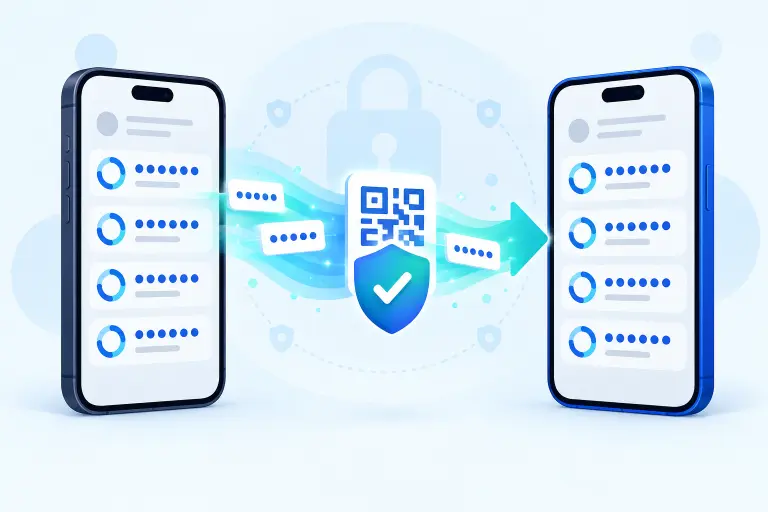
The best way to transfer Google Authenticator to a new phone
| Your situation | What to do |
|---|---|
| You signed in to a Google Account inside Authenticator | Install Authenticator on the new phone and sign in with the same Google Account. The synchronized entries should appear automatically. |
| You chose “Use without an account” and still have the old phone | Use Transfer accounts, Export accounts on the old phone, then Import accounts on the new phone. |
| You no longer have the old phone and the codes were not synchronized | Use a recovery code, another enrolled factor, a trusted session, or the official recovery process for each protected service. |
| You are changing authenticator apps | Use a compatible official export if available, or re-enroll the new app separately within each service’s security settings. |
Google Authenticator codes belong to the websites and apps you enrolled—not only to your Google Account. Moving the app does not change your phone number, passwords, or the security settings of those services.
How to transfer Google Authenticator to a new phone with sync
Install the official app
Install Google Authenticator on the new Android phone or iPhone using the verified store link from Google’s official Authenticator help.
Sign in with the same Google Account
Open Authenticator and select the same Google Account used in the app on the old phone. Google says synchronized codes are then made available on the new device.
Check the account list
Compare the entries on both phones. If codes seem missing, confirm the profile icon shows the expected Google Account; also check whether the old phone was using a different account or “Use without an account.”
Test important sign-ins
Use a private browser window to test a fresh code for important accounts. Keep an existing trusted session open while testing.
Secure or remove the old device
After verification, remove access to a phone you will no longer control and erase it before selling, recycling, or giving it away.
How to move Google Authenticator to a new phone manually
Use this method to transfer Google Authenticator to a new phone when the accounts are stored locally and your old phone still works.
- Install the latest Google Authenticator app on both devices.
- On the old phone, open Google Authenticator, tap the menu, choose Transfer accounts, then Export accounts.
- Unlock the old device when prompted and select the accounts you want to move.
- Tap Next. The old phone may display more than one transfer QR code when many accounts are selected.
- On the new phone, open the menu and choose Transfer accounts, then Import accounts.
- Scan every transfer QR code displayed by the old phone.
- Confirm the expected accounts appear and test several codes before resetting the old phone.
Can you transfer without a QR code?
Google’s manual account-transfer flow uses a QR code shown on the old device. If you cannot use that flow, open each protected service’s security settings while you still have access, enroll the new authenticator, verify it, and only then remove the old enrollment. A setup key supplied by an individual service may also work, but it must be treated like a password.
Can you export Google Authenticator to another app?
Compatibility varies. Do not assume that another authenticator can safely import Google’s transfer QR code. The most reliable method is to visit each service, add or replace the authenticator, verify the new app, and keep the old app until every account works. Our authenticator apps comparison explains what to check before changing apps.
Transfer Google Authenticator without the old phone
If you need to transfer Google Authenticator to a new phone without the old device, first determine whether your codes were synchronized. Synced codes should appear after you install Authenticator and sign in with the same Google Account. If they were stored only on the lost, broken, or erased phone, Google Authenticator cannot recreate those third-party account secrets by itself.
Recover each account with one of the methods you prepared:
- A service-issued one-time recovery or backup code
- Another enrolled authenticator, passkey, security key, phone prompt, email, or phone number
- A trusted browser or device that is still signed in
- The service’s official account-recovery or support process
Once you regain access, remove the lost authenticator enrollment, add the new phone, generate a fresh set of recovery codes, and review recent account activity. If the phone was stolen, use the official remote-lock or remote-erase feature and remove the device from relevant accounts.
Google Authenticator backup and restore
Synchronization, manual phone transfer, and service-issued backup codes solve different problems. A normal phone backup should not be your only recovery plan, and Google Account backup codes do not restore third-party Authenticator entries.
Why did the Google Authenticator transfer not work?
- Codes are missing after sign-in: check that both apps use the same Google Account and look for entries saved under another account or local-only mode.
- The transfer QR code will not scan: raise screen brightness, clean the camera lens, allow camera permission, avoid glare, and scan every QR code produced by a large export.
- A transferred code is rejected: enable automatic date, time, and time zone on the new phone, select the correct account entry, and enter a fresh code before it expires.
- The old phone is gone: stop searching for an export menu on the new device. Use the protected service’s recovery path unless the entries were synchronized.
- You changed phone numbers: Authenticator’s time-based codes do not depend on the phone number, but SMS recovery settings may need updating separately.
Before you wipe the old phone
- Confirm all expected entries appear on the new device.
- Test the most important accounts in a separate browser session.
- Confirm recovery codes and another sign-in method are available.
- Remove the old device from accounts where appropriate.
- Only then erase the old phone securely.
If you are setting up the app for the first time, follow our Google Authenticator setup guide. For the bigger picture, read what two-factor authentication is and how recovery fits into it.
Frequently asked questions
Select a question to open or close its answer.
Can I transfer Google Authenticator to a new phone?
Yes. Sign in with the same Google Account for synchronized entries, or use Transfer accounts, Export accounts on the old phone and Import accounts on the new phone for locally stored entries.
Can I move Google Authenticator without my old phone?
Only synchronized entries can appear through the same Google Account without the old phone. For unsynchronized entries, use each website’s recovery code, another enrolled factor, a trusted session, or official account recovery.
Does Google Authenticator back up to the cloud?
It can synchronize codes through the Google Account signed into Authenticator. If you use the app without an account, the codes stay on the device unless manually transferred.
Will transferring Authenticator remove codes from my old phone?
Do not assume the old phone is immediately unusable. Verify every account on the new phone, then remove or erase the old device when you are certain the move is complete.
Do Google backup codes restore Authenticator?
No. Google Account backup codes are single-use sign-in alternatives for that Google Account. They do not restore the rotating Authenticator entries for every third-party service.
Does changing my phone number affect Google Authenticator?
Authenticator’s standard time-based codes do not rely on your phone number. Update any SMS, phone-call, or account-recovery number separately.
Sources and further reading
- Google Account Help: synchronize and transfer Google Authenticator codes
- Google Account Help: create and use backup codes
- Google Account Help: fix common 2-Step Verification issues
App menus and recovery choices can change. Follow the latest official prompts shown on your devices and accounts.